Assignment 3
CSCI-4965: Three-Dimensional Computer Graphics
Fall 2000
Announcements
Here are some clarifications and announcements regarding Assignment 3.
- Not using the proper array index can cause your program to
crash. The pixel member of the RGBpixmap class is an array that stores
the color values at each pixel. pixel[0] corresponds to the lower left
pixel of the image, and pixel[numrows*numcols - 1] corresponds to the
upper right pixel of the image.
Assume the origin of the XY coordinate system is placed at the lower
left corner of the image, with the X axis being horizontal and the Y
axis being vertical. Then the pixel at (x, y) corresponds to
pixel[y*numcols + x], where x varies from 0 to (numcols - 1) and y
varies from 0 to (numrows - 1).
- Converting from (x, y) coordinates to polar coordinates (r, theta):
r = square_root[(x-cx)^2 + (y-cy)^2]
theta = inverse_tangent[(y-cy)/(x-cx)]
where (cx, cy) is the coordinates of the image center.
Using atan2(ycomponent, xcomponent) to compute the inverse tangent of (ycomponent/xcomponent) should return an angle specified
in radians in the interval [-pi, pi].
Note that using atan(ycomponent/xcomponent) gives an answer in the range [-pi/2, pi/2]. So both atan(ycomponent/xcomponent) and
atan(-ycomponent/-xcomponent) will give you the same answer, which is probably not what you want.
- Converting from polar coordinates (r, theta) to (x, y) coordinates:
x = r*cosine(theta) + cx
y = r*sine(theta) + cy
where (cx, cy) is the coordinates of the image center.
- If you need to access an image pixel outside the bounds of the
image array for an image transformation, one solution is to consider
the image to be wrapped around so that the left edge of the image is
joined to the right edge of the image, and the bottom edge is joined
to the top edge. So the image pixel value can be obtained from the
corresponding pixel in the wrapped image.
- Be sure to list the image files (from the set we provided) that
your program uses in your README file. Hopefully the problem with the
submission script due to the size of the image files has now been
fixed. Knowing the set of files your program uses will be helpful in
case you are unable to include the image files in your
submission. Please email us if you have trouble submitting your image
files using the submit script.
- If your assignment implementation deviates from the
specifications, be sure to document this in your README file.
The above announcements and clarifications list was last updated at
1:30pm, November 7, 2000.
Description
Code for BMP files
- Code: ShowBMP.C , TextureMap.C , pixmap.C , pixmap.h , Makefile , README
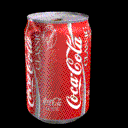
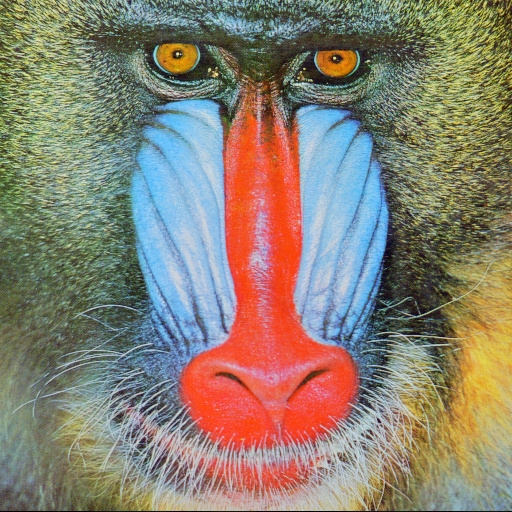
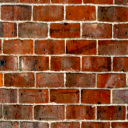
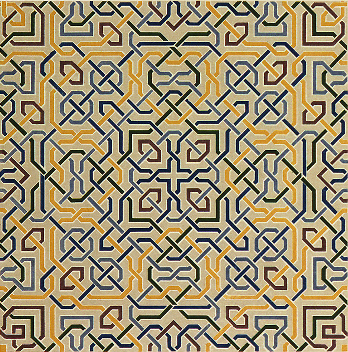
- Image files: Azaleas.BMP , Cokecan.BMP , Mandrill.BMP , Stone.BMP , Fleur.BMP , Forest.BMP , mosque.bmp , mosque2.bmp
Code for TIFF files
If you prefer, you can also use the
libtiff software library to read and write TIFF files.
Lab
You can use the Sun Ultra10 machines with Elite3D graphics in the
Sparc Lab in Amos Eaton 217. The OOT Lab in Amos Eaton 117 has a
cluster of 16 Sun Ultra10 machines with Creator3D graphics that you
can use.
Note on Lab Timings: The Sparc Lab and OOT Lab are usually open
Monday-Saturday from 9am-5pm. You can enter and use the labs at any other
time if you are able to get in. (There usually are some students
working in the Sparc lab late at night.) If you are the last person to leave
the lab after hours, please lock the door behind you.
Handin Instructions
You will submit your assignment by running a script that tars files in
the source directory, gzips and tars them, and emails the uuencoded
file. You will automatically receive an email acknowledgment of your
submission (sent to your CS account).
To submit your assignment, follow these steps:
1. You must be on a CS machine running unix. The Ultras in the Sparc lab will
do fine.
2. Go to the directory in which all your source code (source and header files),
Makefile, and README file are placed.
3. Type "submit compgraph" at the prompt.
This script will automatically tar, gzip, uu-encode and email the
entire directory contents. It tries to be smart about not including
executable and object files, core files, etc.
4. You will receive an automatic email reply showing all the files that were
submitted, along with a timestamp. This email is sent to your CS account,
so be sure to check there or forward email from there to your RCS account.
Note that you can send in multiple submissions. We will use the most
recent one for evaluation of your assignment. The corresponding
timestamp will serve to determine the penalty for late submissions.
Let us know if you have any problems with this submission procedure.
Important: Please save your submitted assignment files until
your assignment has been graded.
Back to the course home page
Xianfeng Zhao
Email: zhaox3@cs.rpi.edu
Srinivas Akella
Email: sakella@cs.rpi.edu