Install On Linux
Install Miniconda Python 3.7
To get started you need to download the correct version of the linux miniconda installer for your operating system.
Your computer has to be running a 64-bit version of Linux in order to be able to run the latest version of Wing IDE 101. Use the link https://repo.continuum.io/miniconda/Miniconda3-latest-Linux-x86_64.sh If you are unsure of which system you are running, see Detecting 64-bits versus 32-bits Linux Systems.
Wait for it to download. It will place a file called Miniconda3-latest-Linux-x86_64.sh in your downloads folder. On my computer using Firefox this is ~/Downloads
Open a Terminal window. If you don’t know how to do this click Applications -> Terminal or search for “Terminal” in the Ubuntu dock search.
Within Terminal change the directory into the folder where your downloaded file lives, i.e.:
cd ~/Downloads
Now run the bash “shell” program to install Miniconda:
bash Miniconda3-latest-Linux-x86_64.sh
Scroll through the license (press the space bar to move through quickly), type ‘yes’ to approve the terms, and then accept all the installation defaults.
Close the Terminal program. Then, restart it.
Within Terminal type:
conda install pillow
Enter y at the Proceed prompt.
When the installation completes, close the Terminal window.
Install Wing IDE 101 and Connect It to Miniconda Python
The second half of the installation is the Wing IDE 101 development environment. This is the software that you use to write, edit, and test your Python programs. Wing IDE 101 calls Python to actually run the program. Therefore, we have to download and install Wing IDE 101 and then tie it to the Miniconda version of Python.
Download the installer for your operating system. For Linux this downloads an installation deb package. Double click on it to install and follow the instructions in the Software Center. As with miniconda, you may need to answer of few questions and accept the license agreement. You should use the default settings.
Open the Wing IDE 101 application. We’ll explore this application in lecture and in lab, but for now we just need to tell Wing about Miniconda Python. To do this, click on the menu and then Edit -> Configure Python
For the Python Executable click on Custom and then Browse to the location for the Miniconda Python executable. This will be something like /home/stewart/miniconda3/bin/python3.7 See the following:
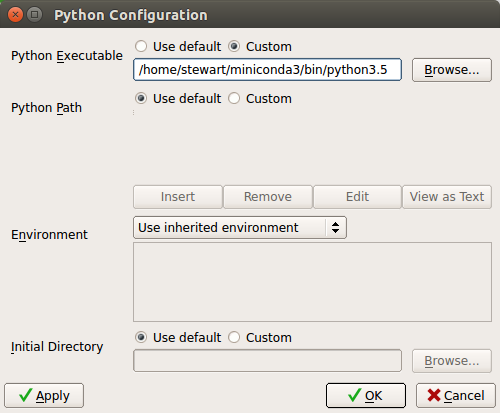
Ignore the Python Path and all other settings and click OK.
Back in the main Wing IDE 101 it may ask you to restart the python shell. Once you do then you should see at the top of the Python Shell window pane something about “3.7 |Continuum Analytics, Inc.” etc. If you have this you are all set and the installation is complete!
Detecting 64-bits versus 32-bits Linux Systems
To determine if you are running 64- or 32-bit Linux, simply open up a Terminal window and type:
uname -m
This will either output “i686” (or something not “x86_64”) for 32-bit or “x86_64” for 64-bit